![brand-logo-1.png]](https://help.ship.com/hs-fs/hubfs/brand-logo-1.png?height=40&name=brand-logo-1.png)
Ship.com is here to save the day and help you ship anything you want! Whether you're a regular person sending a few packages or a small business only needing to ship a few packages, we've got your back! You do not have to connect a store to Ship.com to purchase a shipping label.
If you have already connected your store then you can still use this tutorial to learn how to manually create an order for shipping.
If you'd like to upload multiple orders through a CSV file then check out this new help center article.
Create a New Shipment
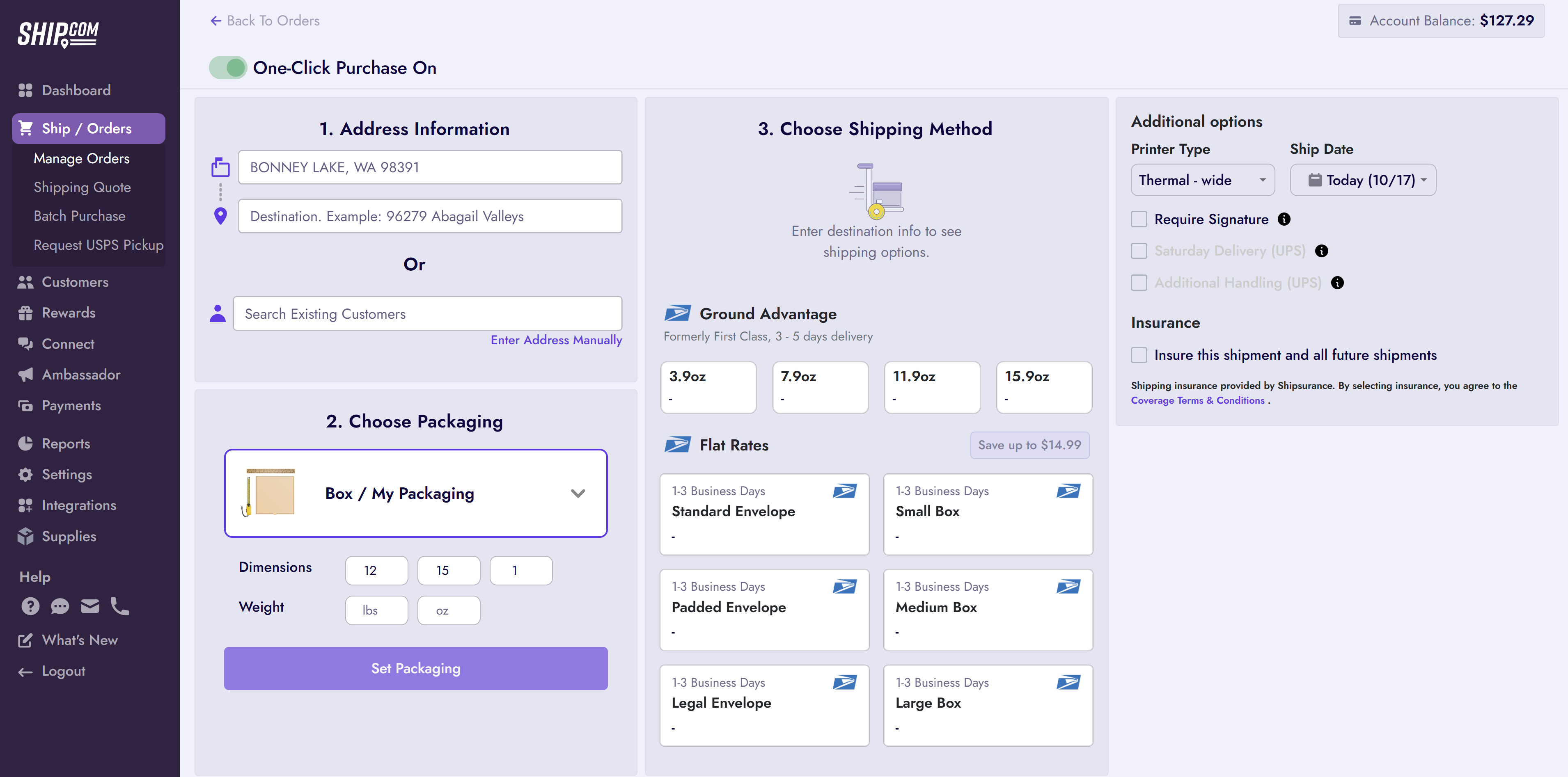
If you'd like to generate a quick shipping label without any fuss then this is the option for you! Click the 'New Shipment ' button from the Orders page https://app.ship.com/orders to open this option. 
You'll immediately see all of the potential shipping options but only some prices will generated. You'll want to enter the recipient and package information to generate the rest of the prices.
Create a new Order
You'll want to choose this option if you need a package covered with insurance or want to send a detailed tracking email, with order information, to the recipient. Click the 'New Order' button on the Orders Page to create an order for your package.
Enter Customer Information
This step is needed to create an order. If it is a new recipient then click 'Add New Customer' to enter the customer's details. If it is an existing customer then just start typing the customer's name and select it from the dropdown menu once it appears.
Enter Order Information
Both Products and Shipping/Tax information are not required when creating an order. You'll want to list the products if you want the package to be covered through insurance. If you enter products then you still do not have to enter the Shipping or Tax information on the order. Any information entered in these two sections will show in the tracking email sent to the recipient.
Create the Order
The Order Number will be automatically generated by the system but you can enter a private note for the order. This note will not appear on the tracking email or be visible for the customer. Make sure to set the correct order status before clicking 'Complete'.
There are multiple status options to choose from when you want to “Create Order”
-
Create Order - if you are ready to ship your order
-
Waiting for Payment - if you are still waiting on payment before you ship
-
Save Draft - if you will need to edit the order or order items before shipping
-
Send Invoice - if you would like to send an invoice to your customer
No matter which option you choose, a new order will appear on your Orders Dashboard so that you can purchase postage!