.svg)
🖨️ Supported Printer Types
You can print shipping labels using two main types of printers:
🔹 1. Thermal Label Printers (Best for Shipping Labels)
- Prints directly on 4" × 6" thermal label rolls
- No ink or toner needed
- Faster printing
- Ideal for high-volume shipping
Common models: DYMO 4XL, Zebra ZD420, Rollo, etc.
Thermal printers are preferred because carriers like USPS and UPS expect shipping labels to be 4×6 and compatible with scanners.
🔹 2. Inkjet or Laser Desktop Printers
- Prints on standard letter paper (8.5" × 11")
- Labels can be pre-printed in two 4×6 labels per page or full-page sheets with label templates
- Requires ink/toner
📥 Choosing the Correct Printer Type in Ship.com
Before buying a label, make sure Ship.com knows what type of printer you’re using:
- Go to the Purchase Shipping Label screen.
- At the top, open the printer dropdown.
- Choose one of these:
- Normal – Half Page (for regular printers)
- Thermal – Wide (for 4×6 thermal printers)
- Thermal – Skinny (for narrow thermal formats)
This tells Ship.com how to format your label correctly.
🖨️ Printing Your Shipping Labels
🌀 Once You Buy a Label
- The label shows up on your screen.
- It’s also saved in the order’s menu.
- You can print it immediately or re-print later.
🔄 How to Re-Print a Label
- Find the order in your orders list.
- Click the three-dot menu on the right.
- Select Re-print Shipping Label.
Re-printing does not charge you again — you’re only charged when the label is first purchased.
📄 Other Printables You May Need
📦 Print Batch Labels
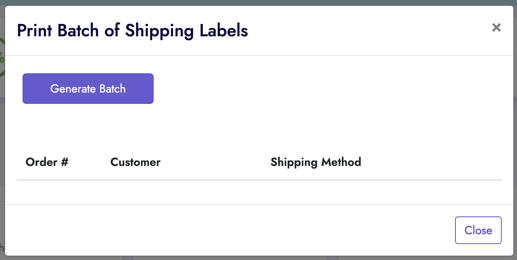
- If you purchased multiple labels at once, use Print Batch to print them together.

- You'll find the print icon beside "New Shipment" on your Ship / Orders page, click Print Batch — this prints all selected labels.
🧾 Print Scan Forms (for USPS)
- USPS scan forms are required when printing more than one USPS label at a time.
- Go to the Print button (below your Shipping Balance).
- Choose USPS Scan Form / Manifest.
- This consolidates labels for USPS scanning.
📃 Packing Slips
- From any order, click the three-dot menu.
- Select Print Packing Slip.
❗ Why Labels Sometimes Print Super Small
If your shipping label prints tiny (barcode and text small and unreadable), it’s almost always a paper size setting issue in your printer dialog.
📌 Fix for Thermal Printers
Make sure the paper size is exactly 4" × 6".
🖨️ For DYMO 4XL
- In the print preview window (before printing), find the Paper Size setting.
- Choose: 1744907 4 in x 6 in
🖨️ For DYMO Twin Turbo
- In the print preview, set Paper Size to: 30256 Shipping
🖨️ For Zebra or Other Thermal Printers
- In print preview, choose 4" × 6" label or 100mm × 150mm (same size).
- Confirm orientation is Portrait.
- Set Scale to 100% / Actual Size (not “Fit to Page”).
📌 Always choose the correct paper size before hitting Print — this is the most common fix.
🧠 Thermal Printer Best Practices
✔ Update your printer’s drivers from the manufacturer website.
✔ Use good quality thermal labels — old/damaged rolls may affect print.
✔ Always set the correct label size each time you print.
📌 Quick Tips for Success
✔ Always select the correct label size before printing.
✔ Re-print from the order’s menu if a label fails to print.
✔ Use batch printing for multiple labels.
✔ Use scan forms for USPS shipments with many labels.
🛠️ Common Troubleshooting
- Nothing prints at all → check printer is powered on, plugged in, and selected correctly.
- Printer prints blank labels → check label orientation (face up/down) and clean the print head.
- Wrong label size → confirm paper size in printer settings and print scale is 100%.
- Browser issues → try printing from a different browser (Chrome is recommended).
⚠️ For issues beyond the guidance above (e.g., hardware malfunctions, driver errors, or persistent printing problems), please contact your printer manufacturer for support.