.svg)
Quick Overview
This short video walks through how to connect Square and automatically import your orders into Ship.com, so they’re ready to ship as soon as they come in.
Step-By-Step Instructions
To automatically import your orders from Square, you'll need to give Ship.com permission to access Square order information.
This can be done through the Connect Your Online Store page available when you're setting up your account.

Alternatively, you can also navigate to "Settings," "Integrations," and then click on "Connect a Store."
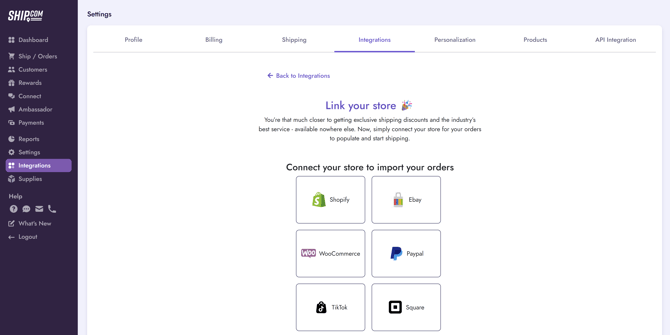
From there, select Square.
Then select the "Connect Square" button at the bottom of the next screen:
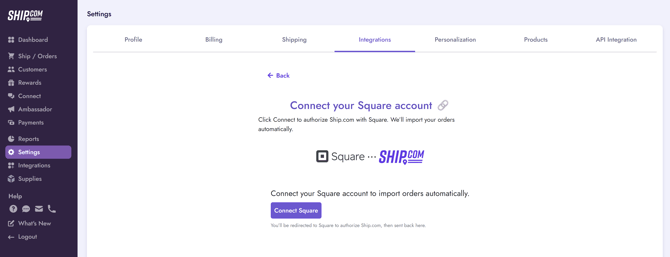
You will then be redirected to Square to login. Follow their steps to give Ship.com permission to access Square order information.
When that is complete, you will land on the Ship.com Orders page and Ship.com will automatically begin processing your last two months of Square orders. The button will read "Syncing" while Ship.com is retrieving your order information.
When this is done processing, you will get a notification at the bottom of the screen to reload the page to see your imported orders:
And that's it! Simply hit that "Sync Square" button whenever you want to bring over your latest order information. We will also retrieve it every thirty minutes for you.